Notify via SMS
You can choose to notify customers via SMS when you send messages. Here's everything you might like to know.
How to notify a customer via SMS
When you start a new message, select the Notify customer via SMS checkbox and then enter one or more mobile numbers.

… when your message is sent, your customer gets an SMS notification telling them they've got a new message, along with a link to view the message.
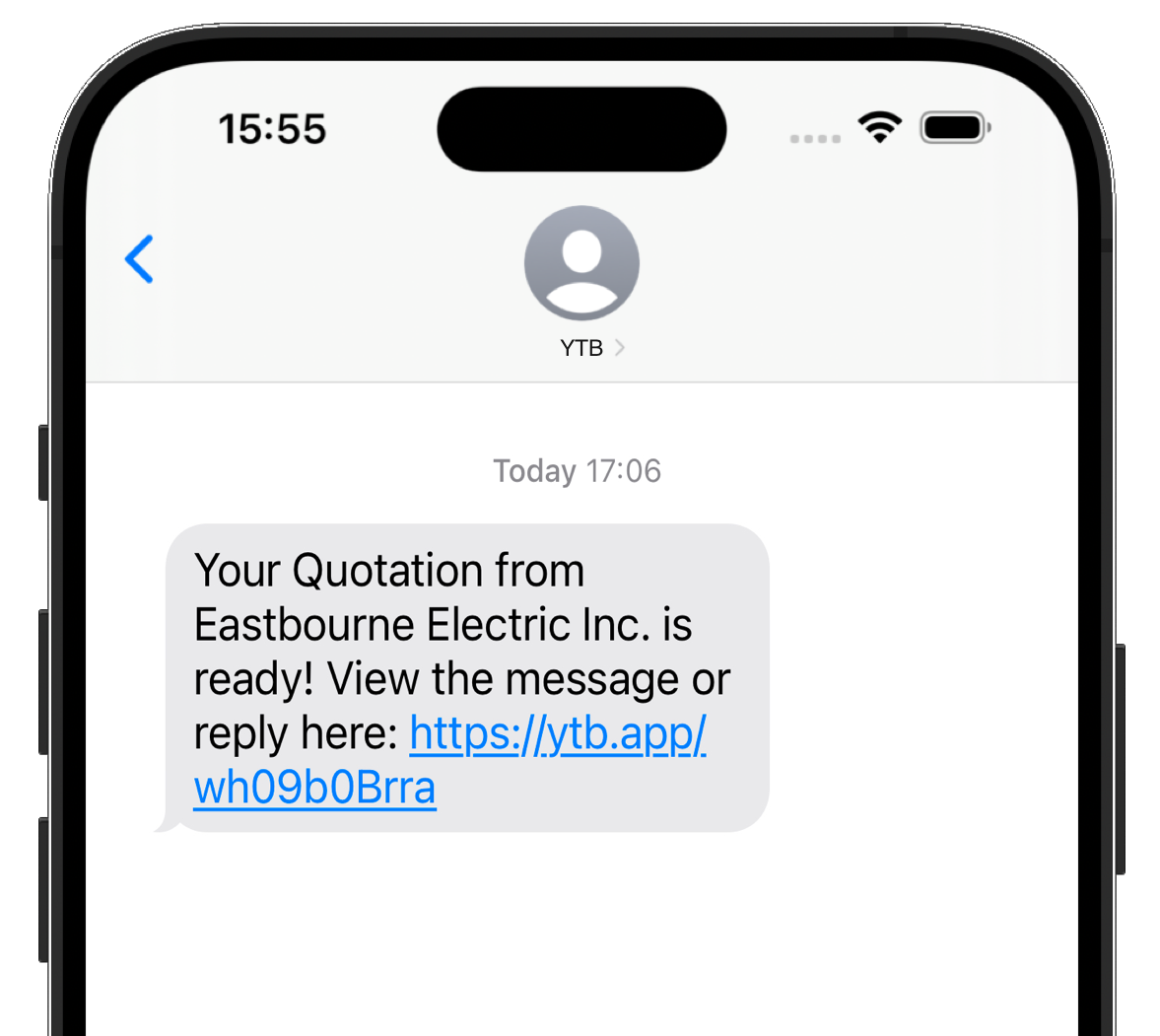
If your customer clicks the link in the SMS, they'll be taken to your message on their client portal.
From the client portal they can reply to your message, and – if your message relates to paperwork – they'll also be able to view it online.

If you'd like to send to multiple mobile numbers, just separate each number with a comma:
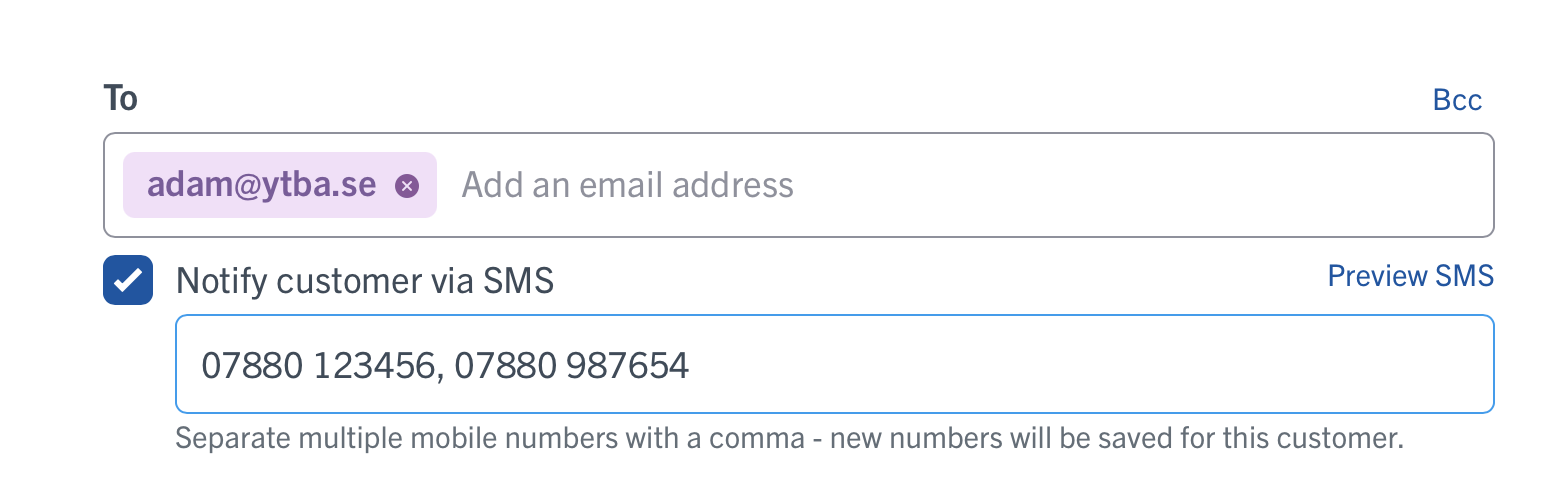
Any new mobile numbers will be saved automatically to your customer's profile, so you won't need to type out their mobile number each time you message them.
If you prefer SMS to be ON or OFF by default when you start a new message, you can choose that option in Settings > Messages > Notify via SMS by default when sending messages. Whatever your choice, you'll still be able to check or uncheck Notify via SMS when you send a new message.
Right now, you can notify via SMS for:
- Sending quotes & follow-ups
- Sending invoices & payment reminders
- Event confirmations
We're busy building Notify via SMS for other messages, too.
Previewing SMS messages
You can see what your SMS will look like – and what was actually sent – in three ways…
1. Preview before sending
When sending your message, you'll see a Preview SMS option under the "To" field. Selecting that will show you what the message your customer will receive.
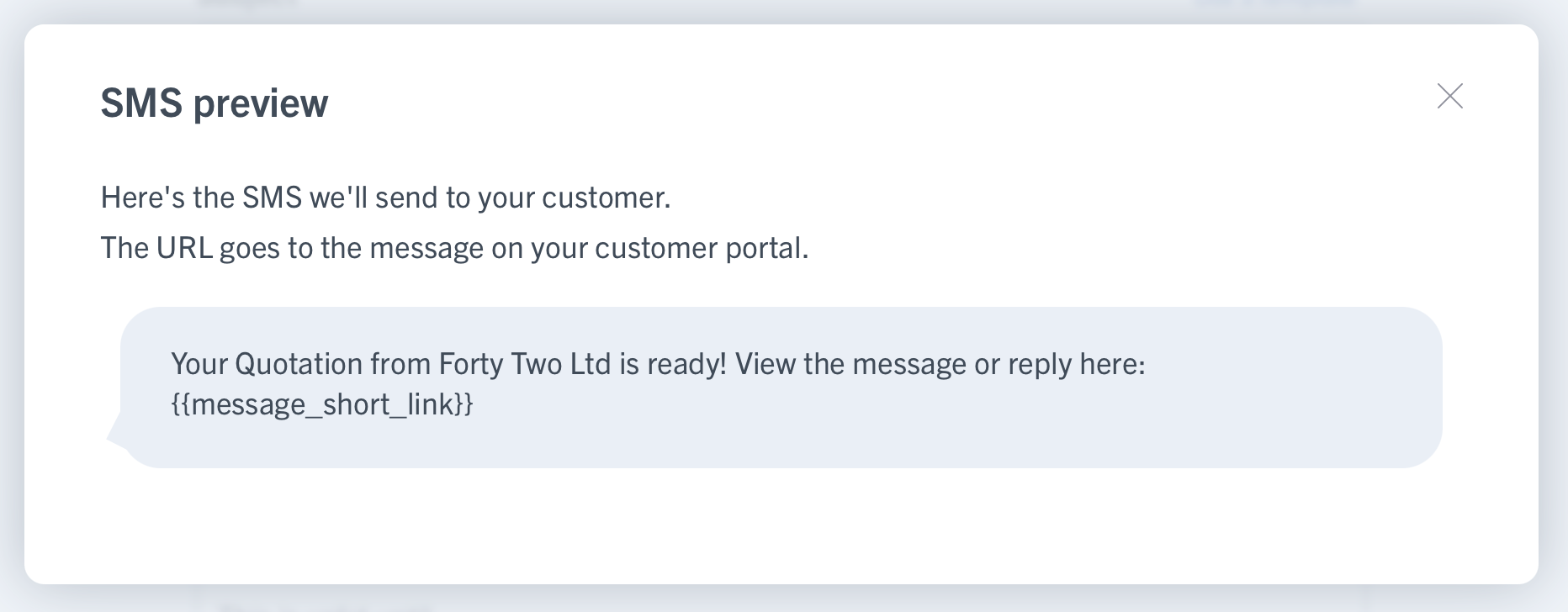
2. Preview in message templates
See what SMS is sent with different message templates – here's how:
- Visit Settings > Messages > Manage message templates.
- Select Edit for the relevant message template.
- At the bottom of the template, you'll see the SMS message that is sent when using this template.
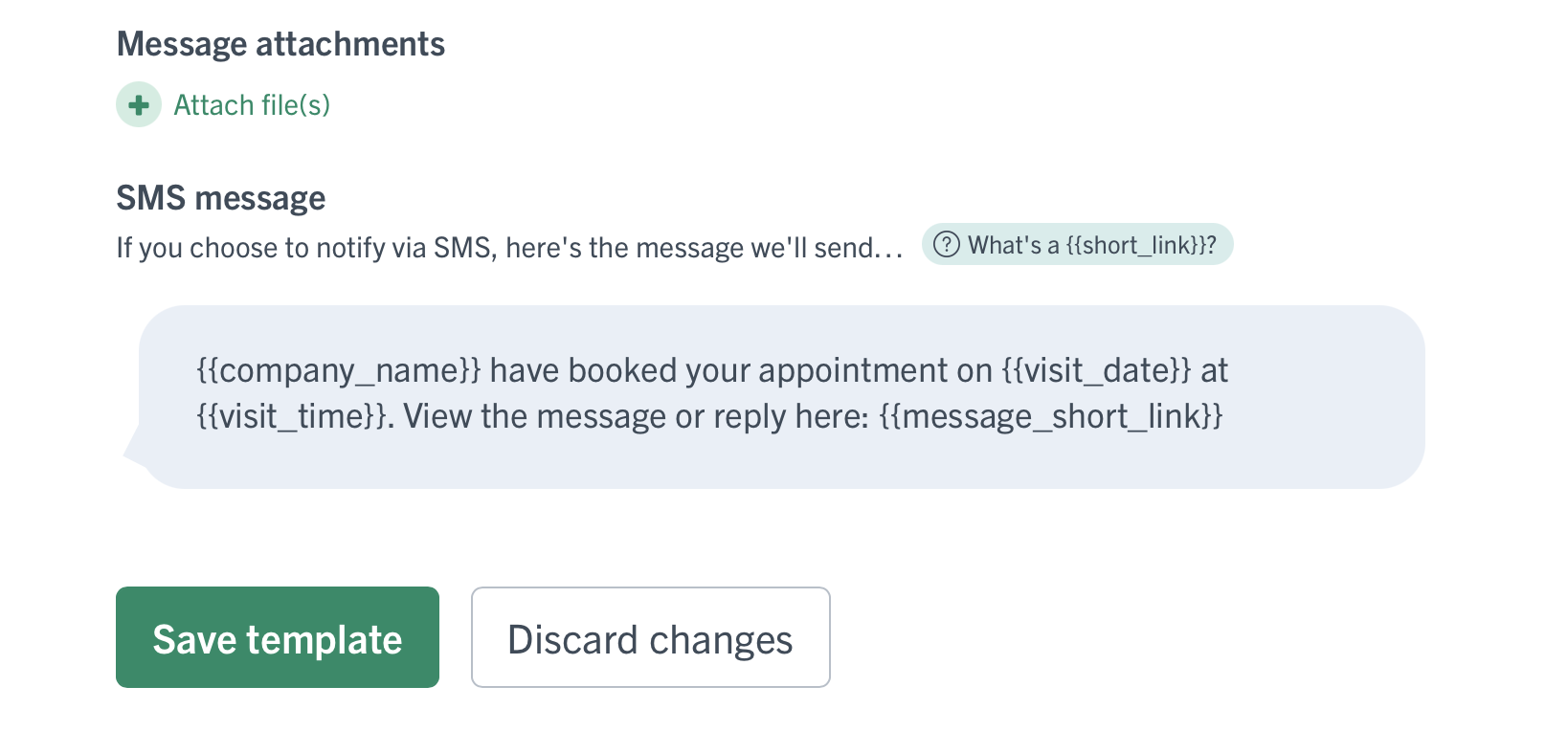
3. View SMS after sending
Once you've sent a message and notified via SMS, you can see what was sent – here's how:
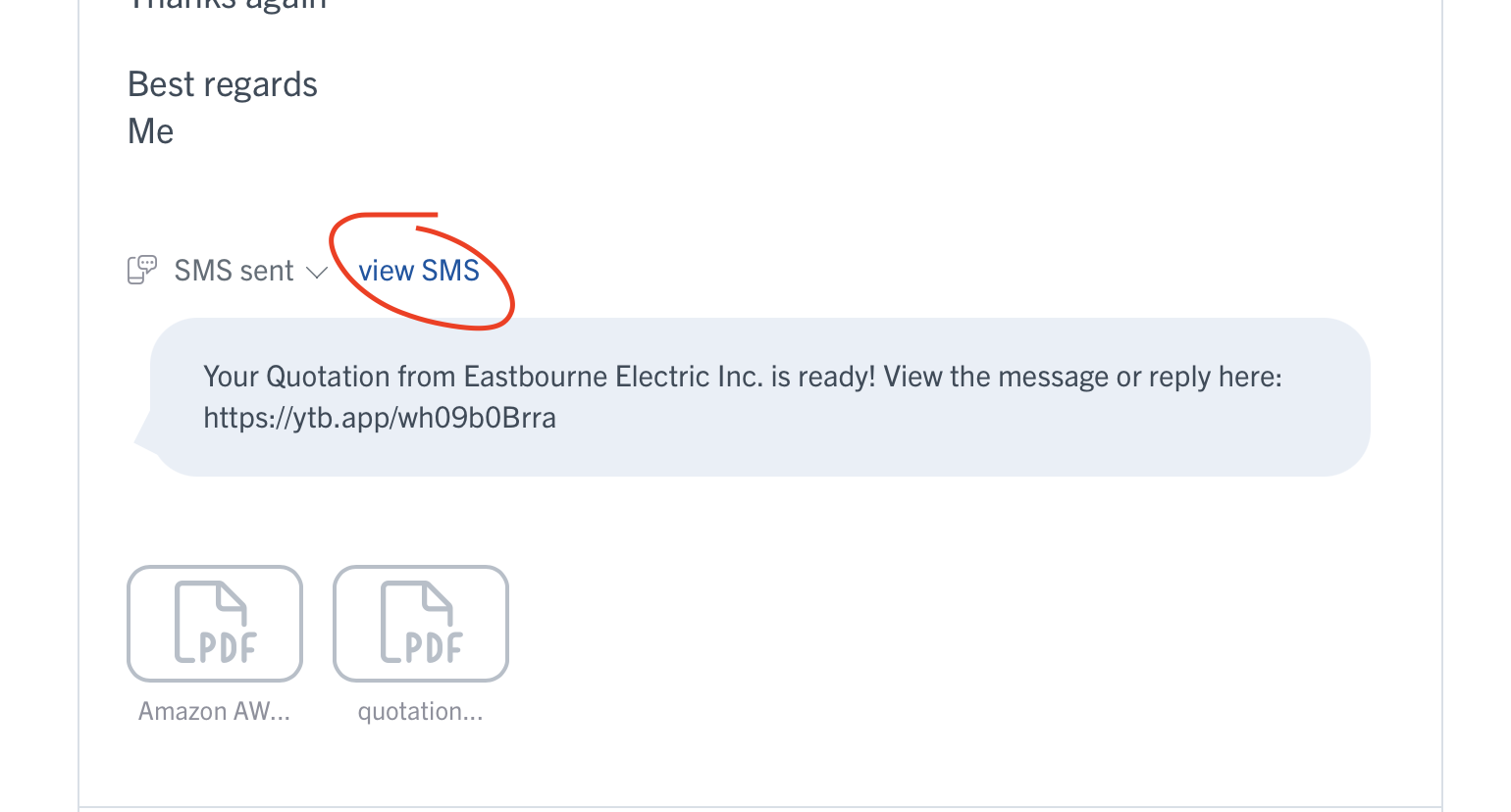
- Select Sent via… from the activity feed.
- Select View SMS to show the SMS message that was sent.
Some common questions…
Q: How do I turn OFF notify via SMS?
If you don't want the Notify via SMS option to be selected by default when sending a message, you can visit Settings > Messages > SMS and turn OFF – or ON – the option to Notify via SMS by default when sending messages.
- When ON: Notify via SMS will default to being checked
- When OFF: Notify via SMS will default to being un-checked
Q: Who is an SMS sent from?
SMS messages have the sender name "YTB".
There's no number attached to the sender, and there's currently no way to change that sender name.
Q: What happens if a customer replies to an SMS?
Nothing! We don't handle SMS replies, and on most phones the customer will receive an instant note to let them know their reply wasn't delivered, like this:

Q: How do I send more SMS?
If you've hit your SMS plan limit and want to continue sending SMS, just visit Settings > Messages > SMS > Change SMS plan and choose the plan that best suits you 👍
Notify via SMS is only available for UK & US customers right now. If you'd like to notify via SMS in your country, let us know!